
Scheduled AI Tasks and Local Automations
A practical guide to cloud AI tasks, local automations, desktop agents, and what needs your computer to stay awake.
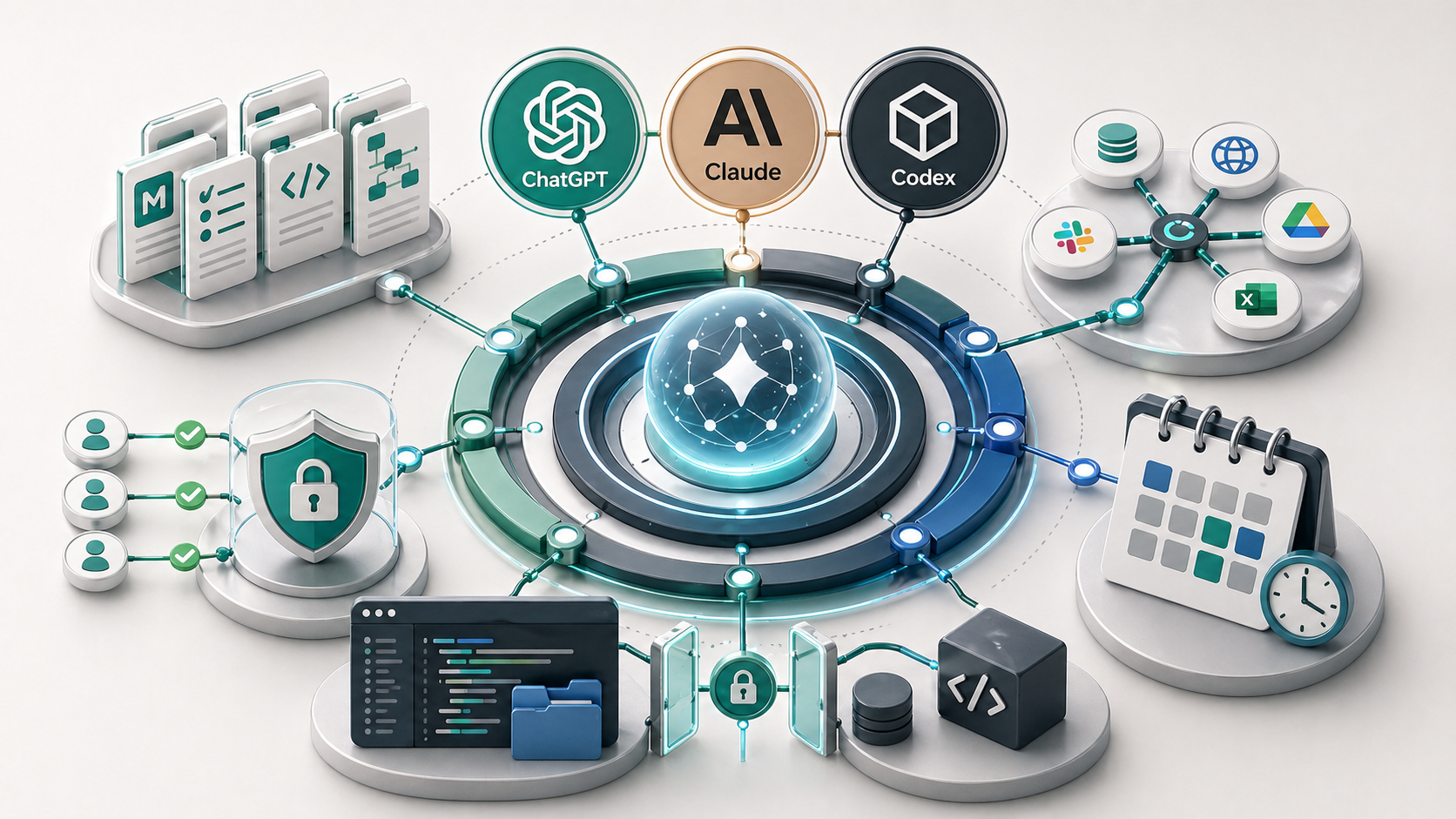
Scheduled AI tasks run later or on a recurring schedule, but not all scheduled work runs the same way. Cloud tasks can run without your computer being awake if the platform supports it. Local automations depend on your computer, files, apps, permissions, and sometimes an active session. The right choice depends on where the workflow needs to happen.
Scheduling is one of the most useful parts of AI.
It is also one of the easiest parts to misunderstand.
People hear “scheduled task” and assume the work will just happen in the background. Sometimes it will. Sometimes it depends on your laptop being awake, a local folder being available, or an app still being connected.
That difference matters.
What is a scheduled AI task?
A scheduled AI task is an instruction that runs later or repeats on a schedule.
Examples include:
- send me a morning briefing
- check this topic every Monday
- summarise new notes each Friday
- prepare a weekly content ideas list
- review a folder and flag missing information
- draft follow-up reminders after a set period
The useful question is not just what the task does. It is where the task runs.
That determines what it can access and what can break.
Cloud tasks versus local automations
| Setup | Where it runs | Good for | Main dependency |
|---|---|---|---|
| Cloud scheduled task | Platform cloud | Reminders, briefings, recurring research, lightweight prompts | Platform account, plan, permissions |
| Local automation | Your computer | Local files, desktop apps, local scripts, browser sessions | Computer awake, files available, app permissions |
| Hybrid workflow | Cloud plus local tools | Work that needs both online services and local project files | More moving parts and clearer review rules |
OpenAI says ChatGPT Tasks can run scheduled or recurring prompts and notify you, including when you are offline. That makes them useful for tasks that do not need your local computer.
Local automations are different. If the workflow depends on files on your machine, a desktop app, a local MCP server, Claude Code, Codex, or a browser session, your computer usually needs to be available. In practice, that can mean changing power settings so the machine does not sleep during the task.
Source: OpenAI Tasks in ChatGPT.
What needs your computer awake?
Your computer may need to stay awake when the workflow depends on local resources.
That includes:
- local project files
- desktop-only apps
- local scripts
- local MCP servers
- browser sessions
- files that are not synced to the cloud
- Claude Code or Codex working in a local project
If the machine sleeps, the automation may stop. If the app signs out, the automation may fail. If the file path changes, the automation may not find the source material.
This is not a reason to avoid local automations. It is a reason to design them honestly.
Where ChatGPT, Claude, Claude Code, and Codex fit
ChatGPT scheduled tasks are useful for cloud-based recurring prompts, reminders, and lightweight research.
Claude chat and Claude projects can help with recurring work when the human brings the task back into the workflow. Claude Code moves closer to local execution because it can work in a project, read files, run commands, and interact with the development environment.
Codex works in a similar project-aware way. It can edit files, run commands, inspect output, and verify changes inside a controlled workspace.
That means Claude Code and Codex are better thought of as local or workspace-aware assistants, not just chat tools. They can be part of scheduled or repeated workflows, but the environment matters.
Good first scheduled tasks
Start with low-risk scheduled work.
Good first examples include:
- a Monday planning prompt
- a weekly content gap summary
- a reminder to review stale leads
- a recurring checklist for inbox cleanup
- a draft summary of notes added during the week
- a report that flags missing information rather than changing records
These tasks are useful because they create visibility. They do not immediately send, publish, delete, or modify important business records.
That is the right starting point for most small businesses.
What to avoid
Avoid scheduling anything that can create business risk before the workflow is stable.
Be careful with tasks that:
- send client emails
- publish content
- update CRM records
- change invoices or financial data
- modify client files
- delete or archive records
- act on legal, health, or compliance-sensitive information
The issue is not that these workflows can never be automated. The issue is that they need clear review rules first.
This is the same principle covered in the MCP and connectors guide. Tool access is useful when the workflow is clear. It becomes risky when the assistant can act without boundaries.
How to decide what should be scheduled
Use three questions.
- Does this task repeat often enough to be worth scheduling?
- Does the task need cloud information, local files, or both?
- What should happen before any client-facing or record-changing action?
If the task is low-risk and cloud-based, a cloud scheduled task may be enough.
If the task needs your local project, then a local automation or Claude Code/Codex workflow may be the right fit.
If the task can affect clients, money, compliance, or reputation, keep a human review step.
Key takeaway
Scheduled AI is useful when the business understands where the task runs.
Cloud tasks are good for lightweight recurring prompts and reminders. Local automations are good when the workflow needs local files, project context, desktop apps, or a controlled workspace. They also depend on your computer being available.
Before scheduling anything, define the AI workflow, the context, the permissions, and the review step. If you are still choosing the process itself, the guide on how to automate business processes in a small business is the better starting point. The AI harness guide explains how those pieces fit together.
If your team wants recurring AI help but is not sure what should run automatically, a process audit can help choose the safest first workflow.
FAQ
Can ChatGPT scheduled tasks run when I am offline?
OpenAI says ChatGPT Tasks can run scheduled or recurring prompts and notify you, including when you are offline. That makes them useful for lightweight reminders, recurring research, and prompt-based briefings.
Do local AI automations need my computer awake?
Local automations often need your computer, files, apps, permissions, and sometimes a running local process to be available. If the workflow depends on your machine, sleeping the computer can stop or delay the task.
What should I schedule first?
Start with low-risk tasks such as reminders, weekly summaries, content checks, internal reports, or draft preparation. Avoid scheduling anything that sends client messages, updates records, or changes financial data until review rules are clear.
Should scheduled AI send messages automatically?
Usually not at first. Scheduled AI should create drafts, summaries, or alerts before it sends or publishes anything. Automatic sending should be reserved for stable workflows with clear permissions, audit trails, and human-approved rules.