
MCP and AI Connectors for Small Businesses
MCP and connectors let AI assistants work with business tools and data. Here is what they mean, when to use them, and how to keep permissions safe.
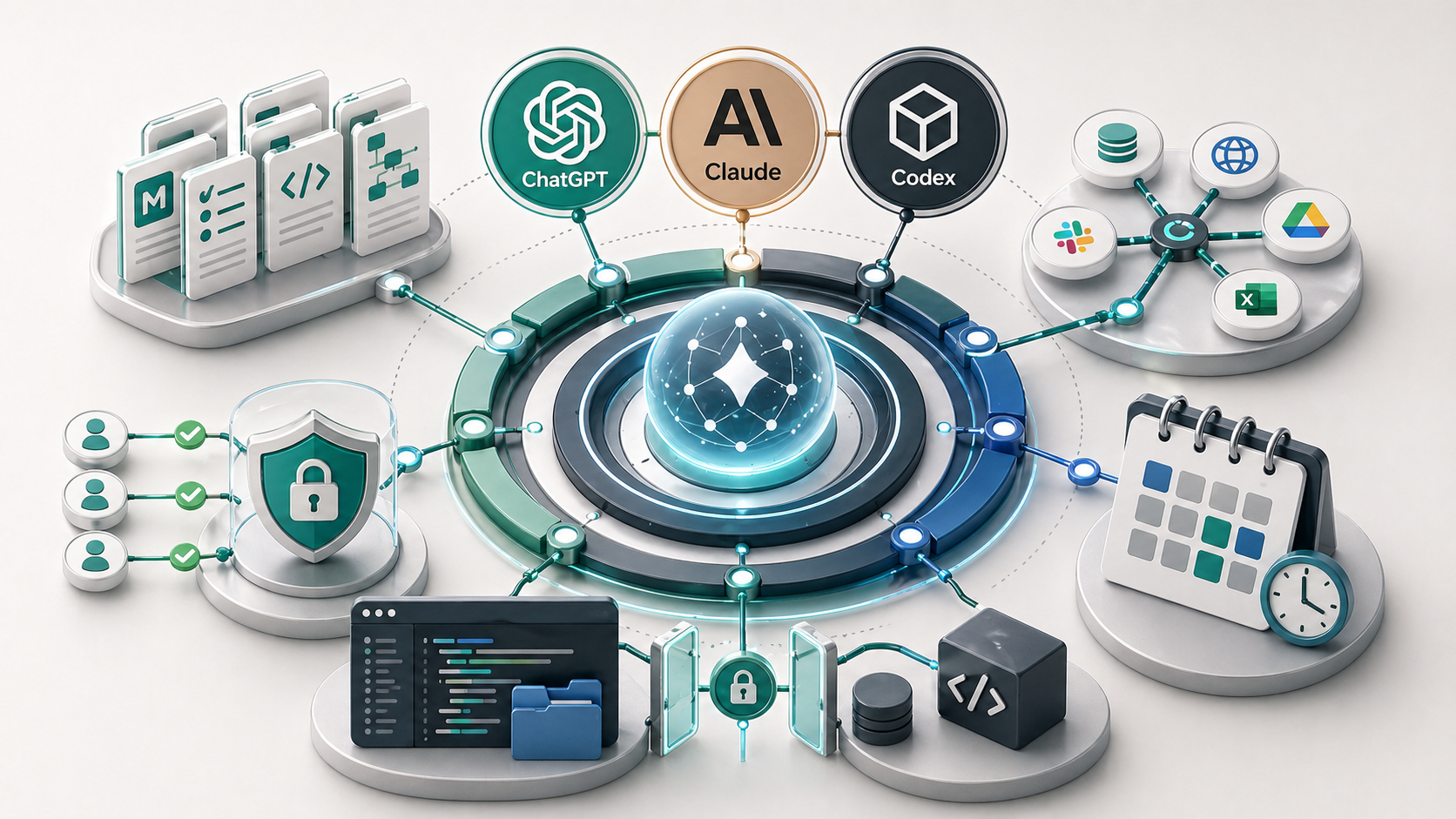
MCP and AI connectors let an assistant access approved tools or data sources, such as files, calendars, task boards, CRMs, code repositories, or internal documentation. They are useful when AI needs real business context, but they should be added with narrow permissions, clear review rules, and strong protection for secrets and client data.
Connectors are where AI starts to feel genuinely useful for business work.
They are also where the risk increases.
That does not mean small businesses should avoid them. It means they should understand what is being connected, why it is being connected, and what the assistant is allowed to do.
What are AI connectors?
AI connectors are ways for an assistant to access external tools and data.
Depending on the product, they may be called apps, connectors, plugins, integrations, tools, or custom connectors. The label changes, but the function is similar: the assistant can reach beyond the chat and work with approved information.
Examples include:
- searching files in Google Drive
- reading a Notion knowledge base
- checking a task board
- inspecting a GitHub repository
- summarising emails
- creating a draft task
- querying an internal database
OpenAI describes ChatGPT apps/connectors as ways to bring external tools and information into ChatGPT, including custom MCP connections. Anthropic describes Claude connectors as ways to connect Claude to external tools and data sources, including custom integrations built with remote MCP.
Sources: OpenAI apps and connectors, OpenAI MCP docs, and Anthropic remote MCP connectors.
What is MCP?
MCP stands for Model Context Protocol.
In plain English, MCP is a standard way for AI applications to connect to tools and data sources. It gives the AI application a structured way to ask an approved system for information or to perform an approved action.
You do not need to understand every technical detail to make good business decisions about it.
The practical question is:
What should the assistant be allowed to read or do, and under what conditions?
That question matters more than the acronym.
Why connectors improve AI workflows
Without connectors, the assistant usually depends on whatever you paste into the chat.
That works for small tasks. It breaks down when the work depends on live or stored business context.
Connectors can help because they reduce:
- copy-paste work
- outdated context
- missing source material
- repeated setup
- manual lookup across tools
For example, an assistant connected to a narrow SOP folder can answer based on the actual process document. An assistant connected to a project folder can summarise the relevant files. A coding assistant like Codex can read the repo, inspect files, run commands, and verify changes instead of guessing from a description.
If the SOP folder is messy, outdated, or spread across too many places, fix the knowledge layer before adding more connectors. The guide to internal knowledge systems for small businesses explains how to structure that source material so AI can use it more reliably.
That is useful. But it is only useful when the connection is scoped to the workflow.
Where ChatGPT, Claude, and Codex fit
ChatGPT can use apps, connectors, files, projects, custom GPT-style workflows, and custom MCP connectors depending on the plan and settings.
Claude can use connectors, project context, skills, Claude Code workflows, Claude Cowork-style collaboration, and remote MCP integrations.
Codex and Claude Code are often the most concrete examples because they can work inside a real codebase. They can read project instructions such as AGENTS.md or Claude-specific project files, use local context files, edit files, run terminal commands, and follow approval rules. That is connector thinking applied to an execution environment.
The lesson is not that every business needs a coding agent. The lesson is that AI becomes more useful when it has a controlled work environment around it.
That is the broader AI harness: context, instructions, tools, permissions, and review.
Read access versus write access
The most important distinction is read versus write.
| Access type | What it allows | Example | Starting rule |
|---|---|---|---|
| Read-only context | Assistant can inspect approved information | Search an SOP folder | Good first step for most workflows |
| Draft-producing access | Assistant can create a draft for review | Draft an email or task | Useful if a person approves before sending |
| Write-capable action | Assistant can change a system | Update a CRM record or create a ticket | Use carefully and require clear permissions |
| External communication | Assistant can send or publish | Send email, post message, update website | Highest review need for small businesses |
Read-only access is usually the safest place to start. It lets the assistant use real context without changing business records.
Write access needs more care. If the assistant can update a CRM, send an email, modify a website, or change files, the review process needs to be explicit.
Security rules before connecting tools
Before connecting tools, set a few rules.
First, do not put secrets in assistant-readable context files. Keep API keys, tokens, private keys, passwords, and .env values out of markdown files, uploaded documents, and committed repositories.
Second, connect the smallest useful source. If the assistant only needs SOPs, do not connect the whole company drive.
Third, separate general instructions from sensitive records. A writing-style file and a client folder should not be treated the same way.
Fourth, require review for client-facing, financial, legal, health, staffing, or reputation-sensitive actions.
Fifth, check what the connector can do. A connector that can only search is different from a connector that can write, delete, send, or publish.
These rules are not anti-AI. They are what make AI usable without turning access into a liability.
For the more detailed safety layer, read the guide to safe AI workspaces, .env files, and API keys. If the connector depends on a local tool or server, the terminal basics guide is the practical next step.
Small-business example
Imagine a small accounting practice wants AI help with onboarding.
A risky setup would connect email, the full client drive, the CRM, task management, and accounting software all at once.
A better first setup would be narrower:
- Create AI context files that explain the onboarding process and review rules.
- Give the assistant read-only access to the onboarding SOP folder.
- Create a reusable workflow for turning intake notes into an internal checklist.
- Let the assistant draft tasks for review, not update client records automatically.
- Only add write actions after the workflow is proven and the permissions are clear.
That kind of setup is less impressive in a demo, but more likely to survive real work.
How connectors relate to AI tools
Connectors should come after tool selection and workflow design.
If you have not decided which workflow matters, connecting more tools usually creates noise. The assistant has more places to look, more chances to find the wrong context, and more risk if permissions are broad.
The AI tools guide covers tool selection. The AI workflow guide covers how to choose and structure the process. The guide to scheduled AI tasks and local automations explains what changes when connected work needs to run later or recur. Connectors sit after those decisions.
The order should be:
- Choose the workflow.
- Define the context.
- Decide what the assistant needs to read.
- Decide what it can draft.
- Decide what, if anything, it can change.
Key takeaway
MCP and connectors are useful because they let AI work with real business context.
They are risky when they are added without a workflow, permissions, or review rules.
Start with narrow read access. Add draft-producing workflows next. Treat write access as a separate decision. If your business is not sure which systems should be connected first, a process audit can help map the workflow and decide where AI access is actually useful. That is part of the practical implementation work inside my AI consultancy.
FAQ
What is MCP in simple terms?
MCP, or Model Context Protocol, is a standard way for AI applications to connect to external tools and data sources. In simple terms, it gives an assistant a structured way to read from or act inside approved systems instead of relying only on copied-and-pasted context.
Are AI connectors safe for small businesses?
They can be safe when permissions are narrow, the connector is trusted, sensitive data is protected, and risky actions require review. They become risky when a business connects too many systems, exposes secrets, or allows write actions without approval.
What should AI be allowed to access?
Start with the smallest access needed for the workflow. A read-only documentation folder, SOP library, or project folder is usually safer than broad access to email, CRM, finance, or client records. Add write access only when the review process is clear.
Can Claude Code and Codex use connectors too?
Claude Code and Codex can both work with tools, files, repositories, terminal commands, and connected environments depending on the setup. That makes them useful examples of the same harness pattern: context plus tool access plus permission boundaries, rather than a blank chat.