
Terminal Basics for AI Beginners
A practical, non-developer guide to terminal basics for using Claude Code, Codex, local AI tools, MCP servers, and simple automations safely.
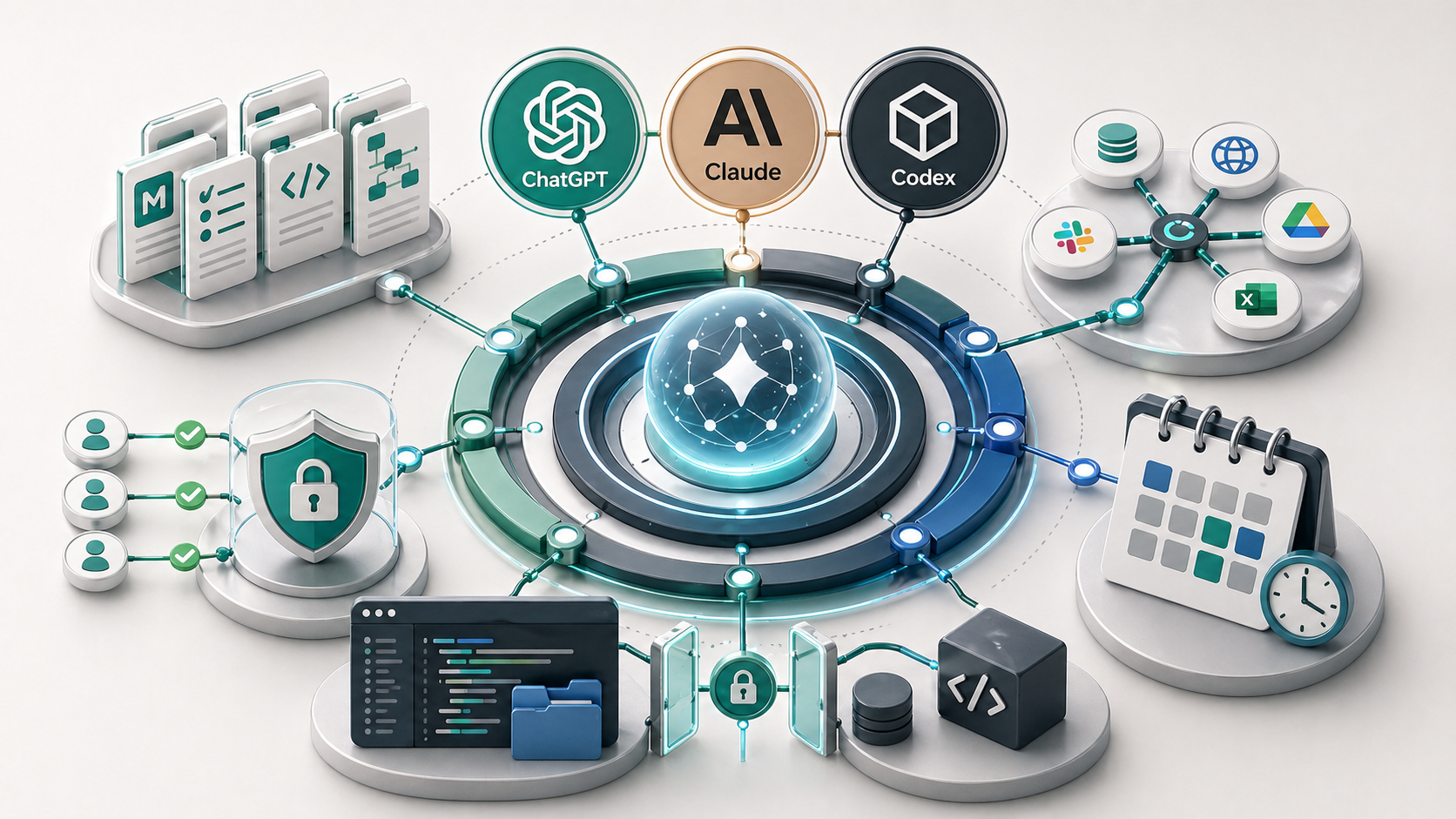
The terminal is a text-based way to run commands on your computer. For AI work, small businesses only need the basics at first: knowing which folder they are in, listing files, opening a project, running a safe command, stopping a running process, and avoiding commands that delete, overwrite, install, or expose sensitive files without review.
You do not need to become a developer to understand the terminal.
But if you want to use tools like Claude Code, Codex, local MCP servers, or desktop automations, it helps to know what is happening when a command runs.
The goal is not technical sophistication. The goal is basic control.
What is the terminal?
The terminal is an interface for giving your computer text commands.
Instead of clicking through folders and buttons, you type a command. The command might list files, open a project, install a tool, run a check, start a local server, or stop a process.
For a small business, the terminal matters because many AI workflows are moving from chat into working environments. Claude Code and Codex are good examples. They can work inside a project, read files, run commands, check outputs, and help verify whether something actually works.
That is more powerful than a blank chat. It also needs more care.
Why AI tools use the terminal
Chat-based AI is useful when the work is mostly language, reasoning, or analysis.
The terminal becomes useful when the work touches local systems:
- a website project
- a folder of markdown files
- a local automation
- a CSV cleanup script
- a local MCP server
- a development server
- a build or test command
This is why Claude Code and Codex can feel different from ordinary chat. They are not just answering a question. They can work inside the folder where the job actually happens.
That is the same pattern described in the AI harness guide: the model becomes more useful when it has context, tools, permissions, and review rules around it.
The few commands worth understanding first
You do not need to memorise hundreds of commands.
Start with the basics.
| Command | Plain-English meaning | Risk level |
|---|---|---|
pwd | Show the folder you are currently in | Low |
ls | List files in the current folder | Low |
cd folder-name | Move into another folder | Low |
cd .. | Move up one folder | Low |
npm run build | Run a project’s build check, if it has one | Medium |
npm run dev | Start a local development server | Medium |
control + c | Stop a running command | Low |
rm file-name | Delete a file | High |
rm -rf folder-name | Delete a folder and its contents | Very high |
git status | Show changed files in a repo | Low |
git commit | Save a set of changes in git | Medium |
The most important habit is checking the folder first.
If you run the right command in the wrong folder, you can get confusing results or change the wrong project.
Chat-only AI versus project-aware AI
| Setup | What it can do well | What it cannot see by default |
|---|---|---|
| Blank chat | Explain, draft, reason, summarise pasted material | Your real files, folder structure, tools, and current project state |
| Chat with uploaded files | Work from selected documents | Live project state, terminal output, local environment |
| Claude Code or Codex | Read project files, run commands, inspect errors, verify changes | Anything outside the allowed workspace or permissions |
| Local automation | Run a defined workflow on your machine | Cloud-only data unless connected separately |
This is why terminal basics matter. Once AI can work inside a project, the terminal becomes part of the workflow.
What commands are higher risk?
Be careful with commands that delete, overwrite, install, publish, send, or expose information.
Higher-risk commands include:
- delete commands such as
rm - install commands you do not understand
- commands copied from random websites
- commands that include API keys or tokens
- commands that publish or deploy
- commands that send emails or messages
- commands that change git history
The issue is not that these commands are always bad. Many are normal in the right context. The issue is that they should not be run blindly.
If an AI assistant suggests a command, ask what it does before running it. If the command touches secrets, client data, live systems, or irreversible changes, slow down.
Example workflow
Imagine you are working on a website article with Codex or Claude Code.
A simple terminal-aware workflow might be:
- Open the project folder.
- Check the current folder with
pwd. - Check changed files with
git status. - Let the assistant edit the article.
- Run
npm run buildto verify the site still builds. - Review the changed files before publishing.
That is a practical use of the terminal. It is not about becoming technical for its own sake. It is about making sure the work was checked in the environment where it will actually run.
How this connects to local AI tools
Terminal basics also help with MCP and connectors, because some custom connectors or local servers are started from your machine.
They also help with scheduled local automations, because local workflows depend on the computer, files, permissions, and sometimes a running process.
The terminal is not the whole system. It is one part of a safe local workspace. That is why it should be paired with context files, review rules, and clear security boundaries.
Key takeaway
You do not need to become a developer to use the terminal safely.
You need enough understanding to know where you are, what a command does, and whether it can change or expose something important.
That is the level that matters for small business AI work. It lets you use Claude Code, Codex, local MCP servers, and automations with more confidence and less blind copy-paste risk.
If you are unsure which workflows should move from chat into a local project or automation, start with the business process first. A process audit can help identify the safest, highest-value place to begin, and that is part of my broader AI consultancy.
FAQ
Do I need to learn the terminal to use AI?
You do not need terminal skills for normal chat-based AI use. Terminal basics become useful when you want AI to work with local files, code projects, command-line tools, MCP servers, or automations on your computer.
Is the terminal dangerous?
The terminal is not dangerous by itself, but some commands can delete files, overwrite work, install software, expose secrets, or change a project. The safe approach is to understand what folder you are in and what a command does before running it.
What should I check before running a terminal command?
Check the current folder, what the command reads, what it writes, whether it installs anything, whether it deletes or overwrites files, and whether it could expose API keys, tokens, passwords, or private client data.
How do Claude Code and Codex use the terminal?
Claude Code and Codex can use the terminal as part of project-aware work. That can include reading files, running build checks, starting local servers, inspecting errors, and verifying changes. This is useful because the assistant can work in the real environment, but it also means permissions and review rules matter.